🏷️How to Fix an Incorrect UPC-ASIN Connection and Update Purchase Orders
🟦 Overview
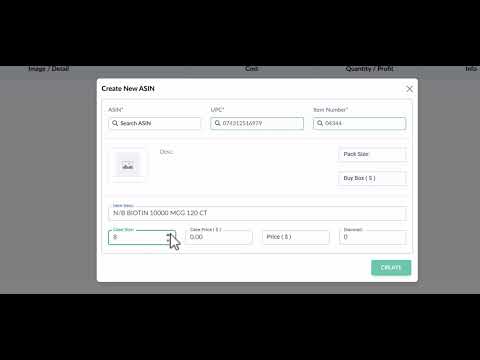
Click the image above to watch the tutorial video
If you’ve added an ASIN to a Purchase Order (PO) using the wrong UPC — don’t worry. In Source Correct, you can easily fix the UPC-ASIN connection and update your PO without losing track of what happened.
This guide walks you through the exact steps to:
- Remove the incorrect ASIN-UPC match
- Reconnect the correct ASIN to the proper UPC
- Update your PO with the corrected ASINs
- Leave a note explaining the removal for future PO history clarity
🔄 Step 1: Remove the Incorrect ASIN Connection
- Go to the Supplier Sheet where the original UPC was uploaded.
- Find the row with the incorrect UPC.
- Copy the Supplier Product Information
- Supplier Description
- Supplier Item #
- Each Price or Case Price
- Case Size
- Copy the connected ASINs and pack sizes
- Use the “Remove ASIN” option to disconnect the ASINs from the incorrect UPC.
- ✅ This will prevent the incorrect connection from being used again in future orders.
➕ Step 2: Add the Correct ASIN Connection
- Click “Add ASIN +” at the top right of your supplier sheet
- Input the correct UPC and then input the copied supplier values (supplier description, item #, each price or case price, and case size)
- Paste the first ASIN that was copied and hit enter
- Hit Create
- ✅ This new connection will now be stored in your database for future use.
📦 Step 3: Create an Alternative PO for Corrected ASINs
- In that supplier sheet, navigate to the ASINs which are connected on your original PO to the incorrect UPC
- Select "Add to PO" and add those ASINs and their quantity to a new PO (you can you the "+" to create new PO)
- Go to that new PO now and Update the New PO to have the same name as the original PO, but with a suffix of "UPC"
- Update the Got Cost, Invoice cost and you are now ready to receive these ASINs with the corrected UPC!
🧾 Step 4: Remove Incorrect ASINs from Original PO
- Back in the original PO, locate the incorrectly connected ASINs.
- Click “Remove from PO”.
- In the removal note field, type something like:
“Removed due to incorrect UPC-ASIN connection. Re-added to Alternative PO with corrected ASIN.”
- 📝 This step is important to maintain transparency when reviewing PO history in the future.
🧠 Pro Tip:
Always double-check UPCs on your physical products against what’s in the system before placing your final PO. Catching mismatches early prevents receiving issues, stranded inventory, and inaccurate profitability tracking.