➕ Build Your Own Catalog: Connect Missing ASINs to Supplier Items
🟦 Overview
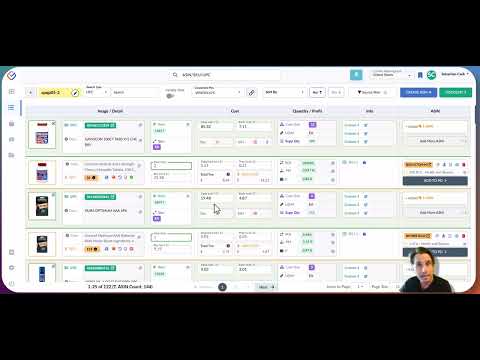
Click the image above to watch the tutorial video
🧠 Why This Matters
Most Amazon tools rely solely on UPC scans. If Amazon’s API doesn’t return a match, those tools treat the product as a dead end — even if it’s already listed on Amazon.
With Source Correct, you can bridge the gap by linking these “invisible” listings to your internal procurement and cost-tracking systems.
✅ When to Use This Feature
Use the “Add Custom ASIN” button on any supplier item when:
-
A valid UPC gets no ASIN match
-
The listing is known by your team, but was not returned by Amazon's API
- You have your team do word/title searches to find additional profitable ASINs
-
You want to track multiple ASINs per supplier item (e.g., variety listings, different pack sizes)
🔍 Example: A UPC scan returns no results, but you know this product exists as a 3-pack listing. Just paste the correct ASIN and connect it manually — now your team can source and analyze it like any other product.
🧭 How to Add a Custom ASIN
-
Click into any supplier item row in your uploaded sheet.
-
Select “Add Custom ASIN.”
-
Paste the known ASIN and click confirm.
-
Source Correct will:
-
Validate the ASIN
-
Pull in title, image, and core listing data
-
Attach it to your supplier item for sourcing
-
🔄 Flexibility & Transparency
-
Add multiple ASINs to a single item (perfect for multipacks or bundles)
-
Easily delete or update custom ASINs if needed
-
Custom ASINs are fully visible in the supplier sheet, alongside SP-API matches
💡 Pro Tip
When your team uncovers ASINs that Amazon’s system misses — don’t lose them.
Use this feature to build your own master catalog and win deals your competitors can’t even see.
It does not matter if the ASIN is not profitable today — if you find it, add it to your catalog so it’s there for future reference.
This creates long-term visibility and ensures your team can quickly act when market conditions change or prices shift.