🆕 Create a Supplier Item from Scratch & Connect it to an ASIN
Manually Build Your Internal Database When the Item Isn't on a Sheet
📘 Overview
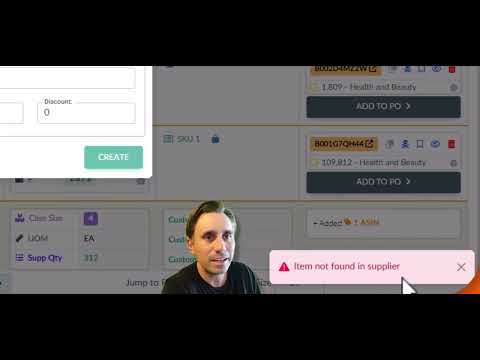
Click the image above to watch the tutorial video
🛠️ How to Create a Manual Supplier Item
-
Go to Supplier Sheets
-
Open the Supplier Sheet Table
-
Select a supplier sheet (or create a blank one)
-
-
Click "+ Create New Item"
-
Use this option to add a supplier item that wasn’t in the original file
-
-
Input Key Product Fields
- ASIN
- ASIN Pack Size
-
Item Number
-
Supplier Product Description
-
Case Size
-
Case Price or Each Price
-
Create the Item to the Sheet
-
Once created, the item and connected ASIN will appear in the Supplier Sheet
-
It’s now tracked like any other scanned item
-
🔗 Auto-Connect the Item to an ASIN
After creating your new item:
-
Source Correct will auto-search to find any other ASINs on Amazon that are connected to that supplier UPC
- It will find and display them with a red ASIN pack size border
- Your team will review the ASIN to confirm accurate connection and confirm ASIN pack size
This gives your team the same functionality as a scanned item, including:
-
Access to pricing data
-
Buy Box visibility
-
Profitability metrics
-
Seamless PO creation
- These new connected ASINs will now display on every supplier sheet in the future as long as that supplier carries that product.
💡 Pro Tip
Building your own item catalog inside Source Correct allows you to:
-
Take control of product sourcing (even when data is incomplete)
-
Create a reliable historical record for future use
-
Empower your buyers with better visibility and accountability
If your supplier doesn’t make data easy — you still can.