💸 Applying Discounts in Source Correct
🟦 Overview
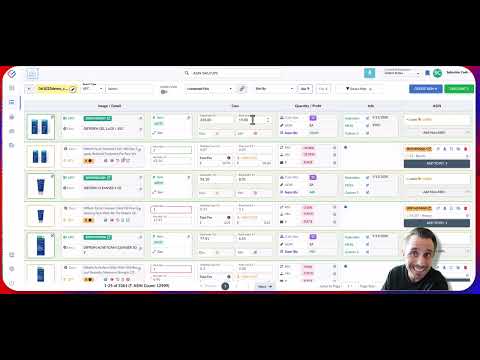
Click the image above to watch the tutorial video
Discounts play a critical role in evaluating profitability, negotiating with suppliers, and forecasting margins. This article walks you through how to apply Supplier Sheet Discounts and Additional Discounts inside your uploaded supplier catalogs to instantly update cost calculations across all products.
🧾 Supplier Sheet Discount
If your uploaded supplier sheet contains a discount field, you can activate it after scanning by opening the Discount Modal.
From here, you can:
-
Select the type of discount:
-
Percentage (e.g., 10%)
-
Dollar amount (e.g., $2.00)
-
-
Apply this discount uniformly across all rows of the supplier sheet.
-
See instant updates to profitability metrics, ROI, margins, and final unit cost.
This is ideal when a supplier catalog already includes baseline discounts in the uploaded file.
➕ Additional Discount
Use this function when:
-
You're negotiating volume-based discounts, or
-
You want to simulate profitability based on a better deal.
Inside the same Discount Modal, you can:
-
Apply a stand-alone discount (not connected to the supplier sheet’s uploaded discount).
-
Choose the discount type (percentage or dollar).
-
Enable an option to combine with the existing supplier sheet discount.
When combining both discounts, you’ll also see a toggle:
🧮 Which discount should be applied first?
Choose the priority between Supplier Sheet Discount (SS) and Additional Discount, (add.) as this may affect the final calculated cost.
💡 Pro Tip
Many advanced users apply a 10–15% stand-alone additional discount just to see if a product could become profitable with future negotiation or better terms.
This helps uncover hidden opportunities before committing to inventory.